 301194963b
一些检查失败了
automerge / automerge (push) Has been cancelled
react-native-android-build-apk / AssembleRelease (push) Has been cancelled
Build macOS M1 / Main (push) Has been cancelled
Joplin Continuous Integration / Main (macos-15-intel) (push) Has been cancelled
Joplin Continuous Integration / Main (ubuntu-22.04) (push) Has been cancelled
Joplin Continuous Integration / Main (ubuntu-22.04-arm) (push) Has been cancelled
Joplin Continuous Integration / Main (windows-11-vs2026-arm) (push) Has been cancelled
Joplin Continuous Integration / Main (windows-2025) (push) Has been cancelled
Joplin Continuous Integration / ServerDockerImage (ubuntu-22.04) (push) Has been cancelled
Joplin Continuous Integration / ServerDockerImage (ubuntu-22.04-arm) (push) Has been cancelled
Joplin UI tests / Main (ubuntu-22.04) (push) Has been cancelled
Joplin UI tests / Main (windows-2025) (push) Has been cancelled
Joplin UI tests / Mobile (push) Has been cancelled
Close stale issues / ProcessStaleIssues (push) Has been cancelled
79 行
4.3 KiB
Markdown
79 行
4.3 KiB
Markdown
# Debugging Server project
|
|
|
|
## Debugging with vscode
|
|
|
|
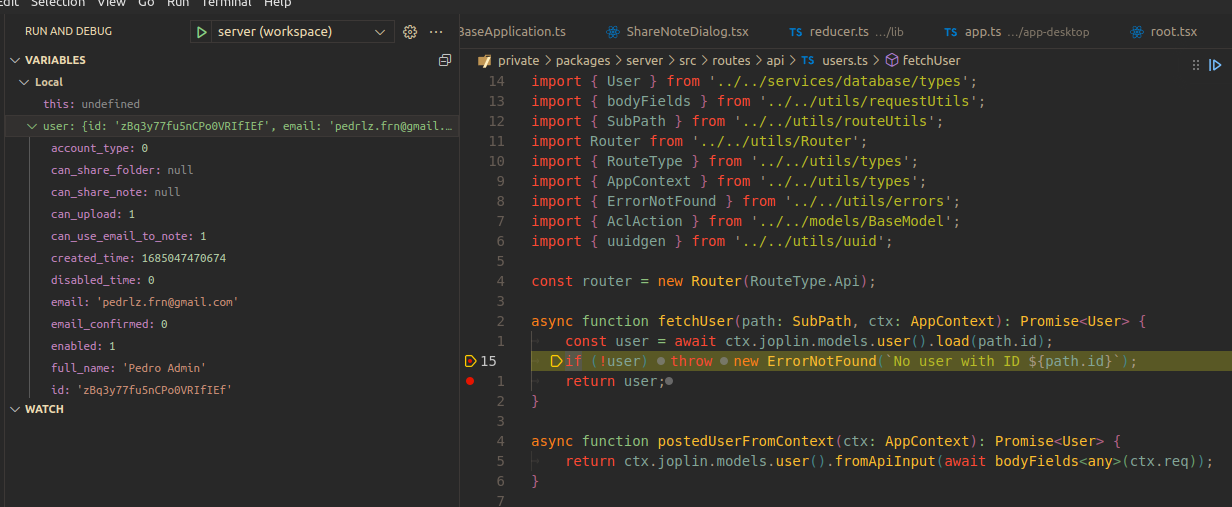
Using a debugger sometimes is much easier than trying to just print things to understand a bug,
|
|
for the server project we have a configuration that makes it easy for everyone to run in debug mode inside vscode.
|
|
|
|
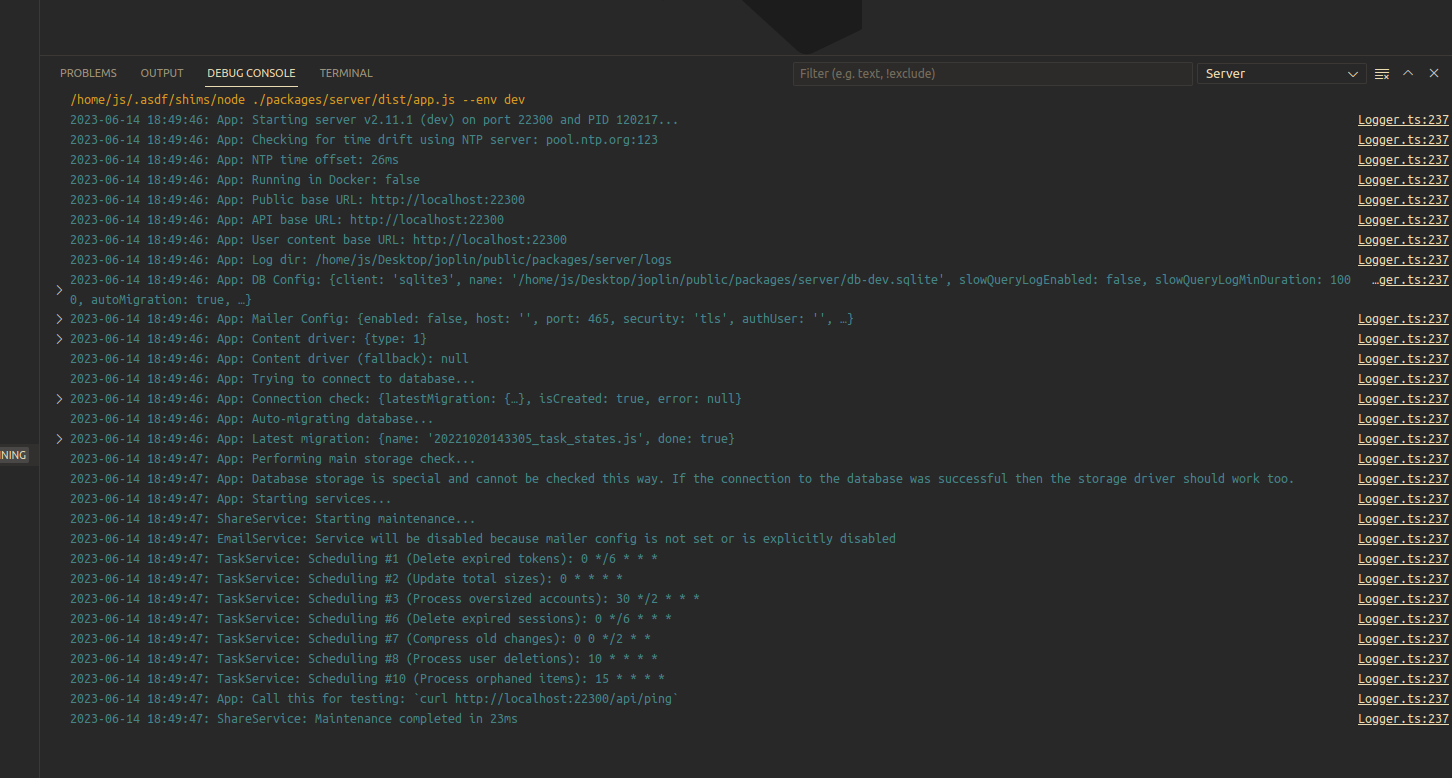
In the debug screen you can select "Server" and hit the play button to start the process.
|
|
|
|

|
|
|
|
Before running the server there is a task called `transpile-server` that runs `yarn tsc` to make sure that the
|
|
latest changes in the `package/server` are being executed.
|
|
|
|
https://github.com/laurent22/joplin/blob/4f37e6073ad549fe72206e2a125c27174b5d96a9/joplin.code-workspace#L360-L365
|
|
|
|
In a optimal solution we would be doing this `transpile-server` task in the `tasks.json` file
|
|
(inside the `tasks.json` we can use a `type` `npm` for the task that is more ergonomic)
|
|
|
|
If there are any new environment variables that need to be included before execution, there is a place where they can be added:
|
|
|
|
https://github.com/laurent22/joplin/blob/4f37e6073ad549fe72206e2a125c27174b5d96a9/joplin.code-workspace#L387-L391
|
|
|
|
Something that we could do to improve the experience is adding a build process to other projects that are used by the server project,
|
|
but this still can be done with other terminals open.
|
|
|
|
### Modifying the configuration:
|
|
|
|
To modify the configuration, for now, it is all in the `joplin.code-workspace` file, but if needed we could also break
|
|
the configuration into two files, one for the `launch.json` and other for the `tasks.json`.
|
|
|
|
|
|
### References:
|
|
[vscode debugger](https://code.visualstudio.com/docs/editor/debugging)
|
|
|
|
[Launch option to vscode workspaces](https://code.visualstudio.com/docs/editor/multi-root-workspaces#_debugging)
|
|
|
|
[vscode tasks](https://code.visualstudio.com/docs/editor/tasks)
|
|
|
|
|
|
### More images:
|
|
|
|

|
|
|
|
|
|
|
|
## Running debug commands
|
|
|
|
When running in development mode, several debug commands can be run by sending requests to `/api/debug`. These include:
|
|
- The `populateDatabase` command adds content to the database, creating test users with initial data.
|
|
- Among other things, this allows testing how Joplin Server handles a large number of users, items, and changes. A larger `size` parameter creates more items. `size` can be either 1, 2, or 3.
|
|
- Example: `curl --data '{"action": "populateDatabase", "size": 2}' -H 'Content-Type: application/json' http://localhost:22300/api/debug`.
|
|
- The `benchmarkDeltaPerformance` command tests the performance of `models.change().delta` by calling `delta` multiple times for each user account. Data is saved in `packages/server/delta-perf.csv`.
|
|
- `ChangeModel.delta` is called during sync and has historically been a performance bottleneck.
|
|
- Example: `curl --data '{"action":"benchmarkDeltaPerformance"}' -H 'Content-Type: application/json' http://localhost:22300/api/debug`.
|
|
|
|
## Fuzzing
|
|
|
|
The sync fuzzer looks for sync bugs. It works by:
|
|
|
|
- Starting an instance of Joplin Server in development mode.
|
|
- Starting instances of the CLI app and connecting them to the server.
|
|
- Performing pseudorandom actions (e.g. "create note", "delete note", "sync").
|
|
|
|
The fuzzer maintains a model of the expected state of the CLI apps. When the actual state of the CLI apps no longer matches this model, the fuzzer stops.
|
|
|
|
To start the fuzzer, run `yarn syncFuzzer start` from the main Joplin workspace directory. See `yarn syncFuzzer start --help` for more information.
|
|
|
|
**Note**: If you encounter an "unauthorized" error, it may be necessary to set the `FUZZER_SERVER_ADMIN_PASSWORD` environment variable before running the fuzzer.
|
|
|
|
### Fuzzing with breakpoints
|
|
|
|
To pause the fuzzer at breakpoints in the client/server logic, use a "JavaScript Debug Terminal" in VS Code:
|
|
|
|
1. Open a debug terminal in VS Code (command palette > "Debug: JavaScript Debug Terminal").
|
|
2. Start the sync fuzzer (`yarn syncFuzzer start`).
|
|
|
|
When debugging, the `--setup=<path to setup file>`, `--snapshot-after=<steps>` and `--restore-from-snapshot` options can be particularly helpful (see `yarn syncFuzzer start --help`).
|